
Home / Products / Baby Carseat Cover & Canopy / Baby Carseat Cover / TS-BCN013
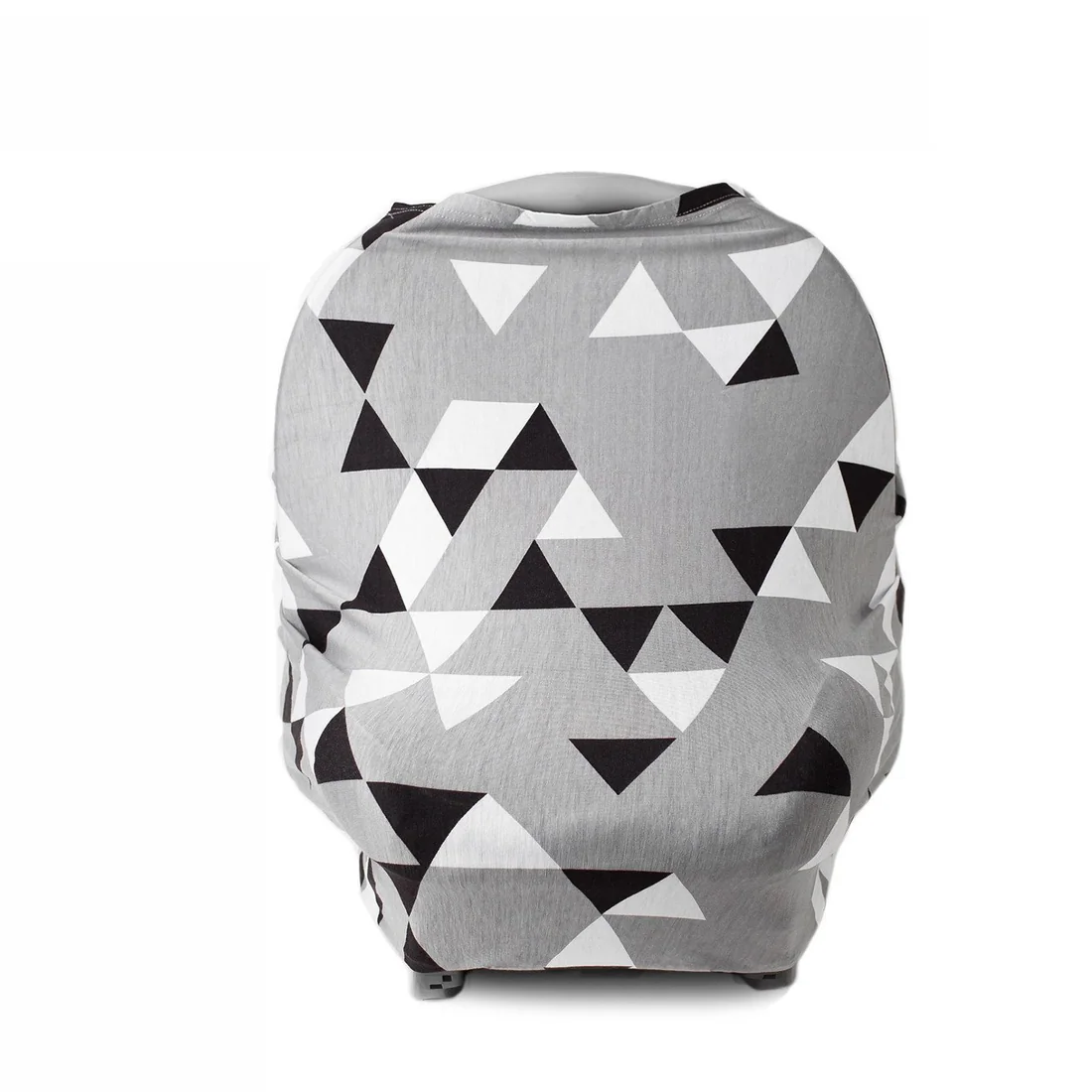
Baby Carseat Cover
TS-BCN013
404 - PAGE NOT FOUND
Specification
No specification table was published for this item. Send us the colour, fabric weight, tape width and size run you need and we will confirm what we can produce.
Item TS-BCN013 · OEM and custom orders welcome · Made in Ningbo, Zhejiang, China
About This Item
404 - PAGE NOT FOUND
ERROR 404 - PAGE NOT FOUND
Why am I seeing this page?
404 means the file is not found. If you have already uploaded the file then the name may be misspelled or it is in a different folder.
Other Possible Causes
You may get a 404 error for images because you have Hot Link Protection turned on and the domain is not on the list of authorized domains.
If you go to your temporary url (http://ip/~username/) and get this error, there maybe a problem with the rule set stored in an .htaccess file. You can try renaming that file to .htaccess-backup and refreshing the site to see if that resolves the issue.
It is also possible that you have inadvertently deleted your document root or the your account may need to be recreated. Either way, please contact your web host immediately.
Are you using WordPress? See the Section on 404 errors after clicking a link in WordPress.
How to find the correct spelling and folder
Missing or Broken Files
When you get a 404 error be sure to check the URL that you are attempting to use in your browser.This tells the server what resource it should attempt to request.
http://example.com/example/Example/help.html
In this example the file must be in public_html/example/Example/
Notice that the CaSe is important in this example. On platforms that enforce case-sensitivity example and Example are not the same locations.
For addon domains, the file must be in public_html/addondomain.com/example/Example/ and the names are case-sensitive.
Broken Image
When you have a missing image on your site you may see a box on your page with with a red X where the image is missing. Right click on the X and choose Properties. The properties will tell you the path and file name that cannot be found.
This varies by browser, if you do not see a box on your page with a red X try right clicking on the page, then select View Page Info, and goto the Media Tab.
http://example.com/cgi-sys/images/banner.PNG
In this example the image file must be in public_html/cgi-sys/images/
Notice that the CaSe is important in this example. On platforms that enforce case-sensitivity PNG and png are not the same locations.
404 Errors After Clicking WordPress Links
When working with WordPress, 404 Page Not Found errors can often occur when a new theme has been activated or when the rewrite rules in the .htaccess file have been altered.
When you encounter a 404 error in WordPress, you have two options for correcting it.
Option 1: Correct the Permalinks
Log in to WordPress.
Select Default.
Click Save Settings.
Change the settings back to the previous configuration (before you selected Default). Put the custom structure back if you had one.
Click Save Settings.
This will reset the permalinks and fix the issue in many cases. If this doesn't work, you may need to edit your .htaccess file directly.
Option 2: Modify the .htaccess File
Add the following snippet of code to the top of your .htaccess file:
# BEGIN WordPress
RewriteEngine On
RewriteBase /
RewriteRule ^index.php$ - [L]
RewriteCond %{REQUEST_FILENAME} !-f
RewriteCond %{REQUEST_FILENAME} !-d
RewriteRule . /index.php [L]
# End WordPress
If your blog is showing the wrong domain name in links, redirecting to another site, or is missing images and style, these are all usually related to the same problem: you have the wrong domain name configured in your WordPress blog.
How to modify your .htaccess file
The .htaccess file contains directives (instructions) that tell the server how to behave in certain scenarios and directly affect how your website functions.
Redirects and rewriting URLs are two very common directives found in a .htaccess file, and many scripts such as WordPress, Drupal, Joomla and Magento add directives to the .htaccess so those scripts can function.
It is possible that you may need to edit the .htaccess file at some point, for various reasons.This section covers how to edit the file in cPanel, but not what may need to be changed.(You may need to consult other articles and resources for that information.)
There are Many Ways to Edit a .htaccess File
Edit the file on your computer and upload it to the server via FTP
Use an FTP program's Edit Mode
Use SSH and a text editor
Use the File Manager in cPanel
The easiest way to edit a .htaccess file for most people is through the File Manager in cPanel.
How to Edit .htaccess files in cPanel's File Manager
Before you do anything, it is suggested that you backup your website so that you can revert back to a previous version if something goes wrong.
Open the File Manager
Log into cPanel.
In the Files section, click on the File Manager icon.
Check the box for Document Root for and select the domain name you wish to access from the drop-down menu.
Make sure Show Hidden Files (dotfiles)" is checked.
Click Go. The File Manager will open in a new tab or window.
Look for the .htaccess file in the list of files. You may need to scroll to find it.
To Edit the .htaccess File
Right click on the .htaccess file and click Code Edit from the menu. Alternatively, you can click on the icon for the .htaccess file and then click on the Code Editor icon at the top of the page.
A dialogue box may appear asking you about encoding. Just click Edit to continue. The editor will open in a new window.
Edit the file as needed.
Click Save Changes in the upper right hand corner when done. The changes will be saved.
Test your website to make sure your changes were successfully saved. If not, correct the error or revert back to the previous version until your site works again.
Once complete, you can click Close to close the File Manager window.
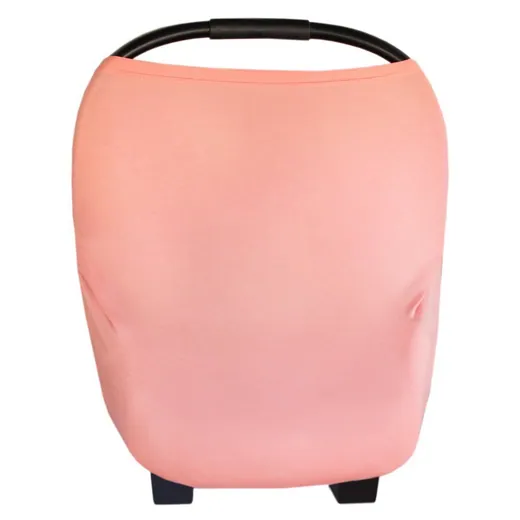
TS-BCN013 belongs to the baby carseat cover range of Team Smart Corporation Limited, a reflective clothing and work wear manufacturer in Ningbo, Zhejiang.
The item can be produced with your own logo, colours and size run — Team Smart provides OEM services and accepts customised orders. Samples are available for quality check in about 7 days after payment, and a full container takes about 20-30 working days.
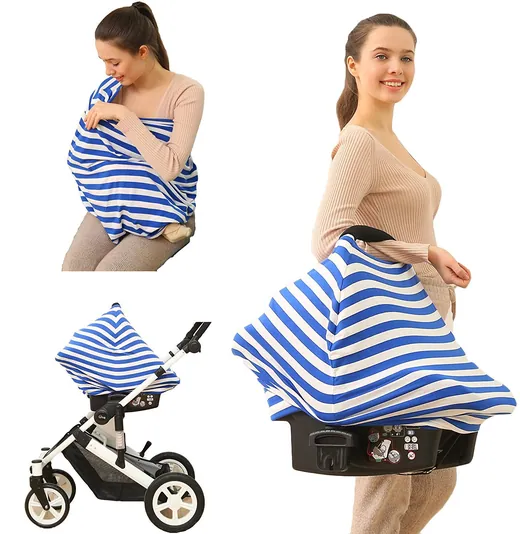
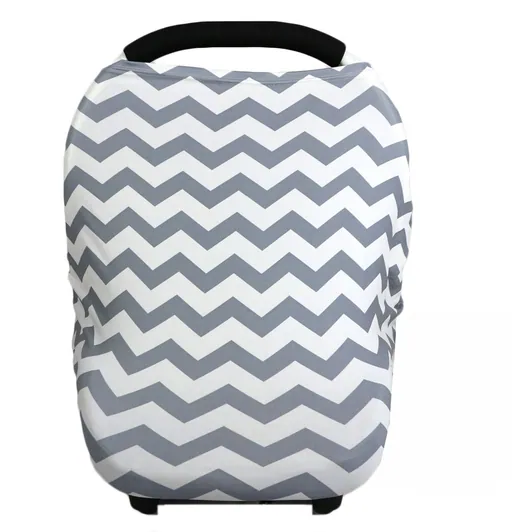
Related Products
All 20 in Baby Carseat Cover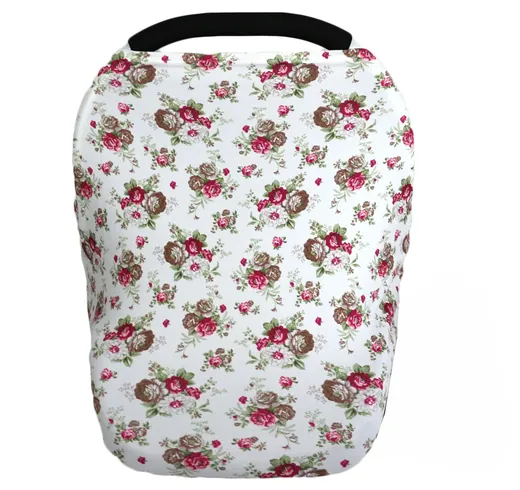
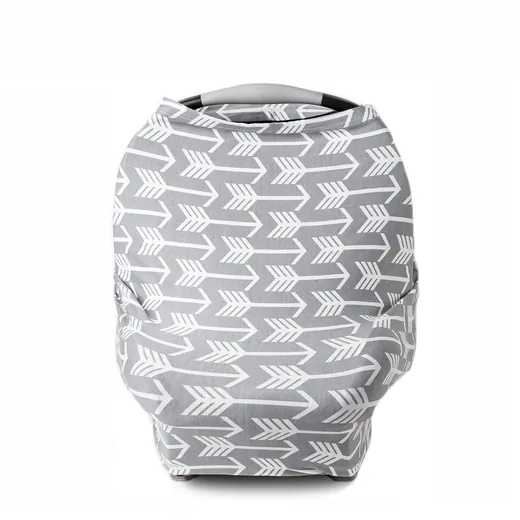
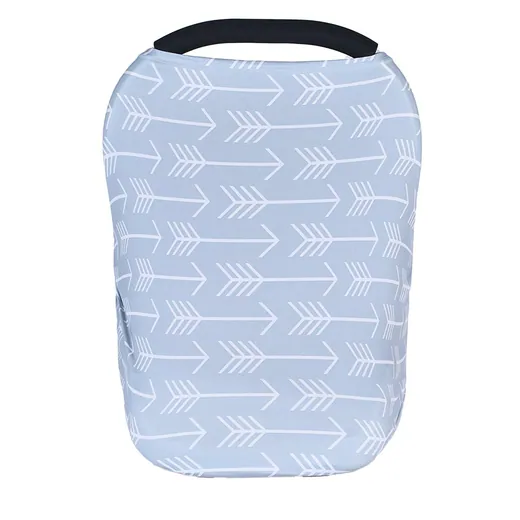
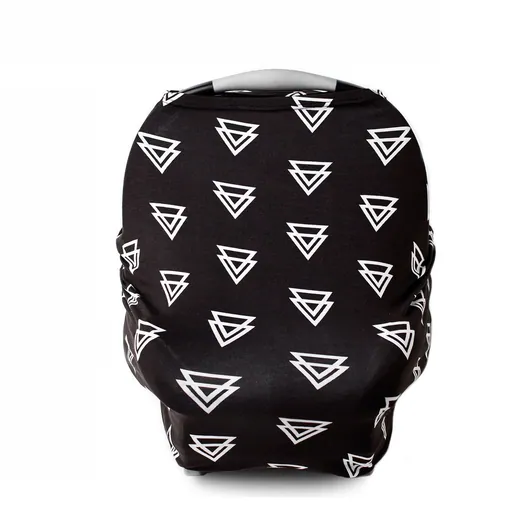
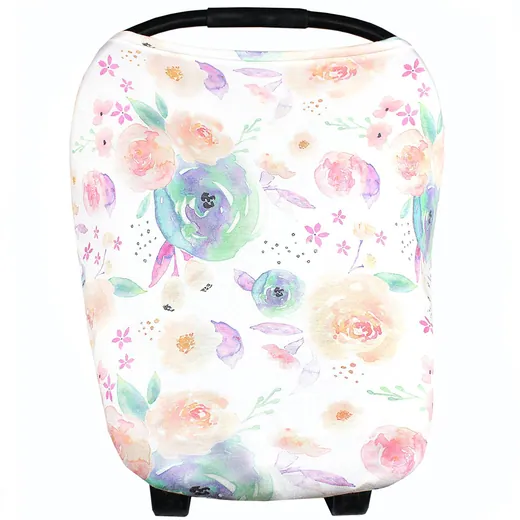
Questions About TS-BCN013
Answers based on the information published by Team Smart. Anything not listed here should be confirmed with our sales team.
What is TS-BCN013?
TS-BCN013 is a baby carseat cover item from Team Smart Corporation Limited.
What is published for TS-BCN013?
The catalogue published this item as a photo and an item number only. Ask our sales team for the specification.
Can this be made with our logo?
Yes. Team Smart provides OEM services and accepts customised orders; send your artwork with the enquiry.
How do I order TS-BCN013?
Send the item number TS-BCN013 with the colour, size run and quantity to [email protected], or message +86 186 5827 0635 on WhatsApp.
Quote Item TS-BCN013
Send the item number, the colour, size run and quantity you need — or your own artwork for an OEM order. Samples are available.